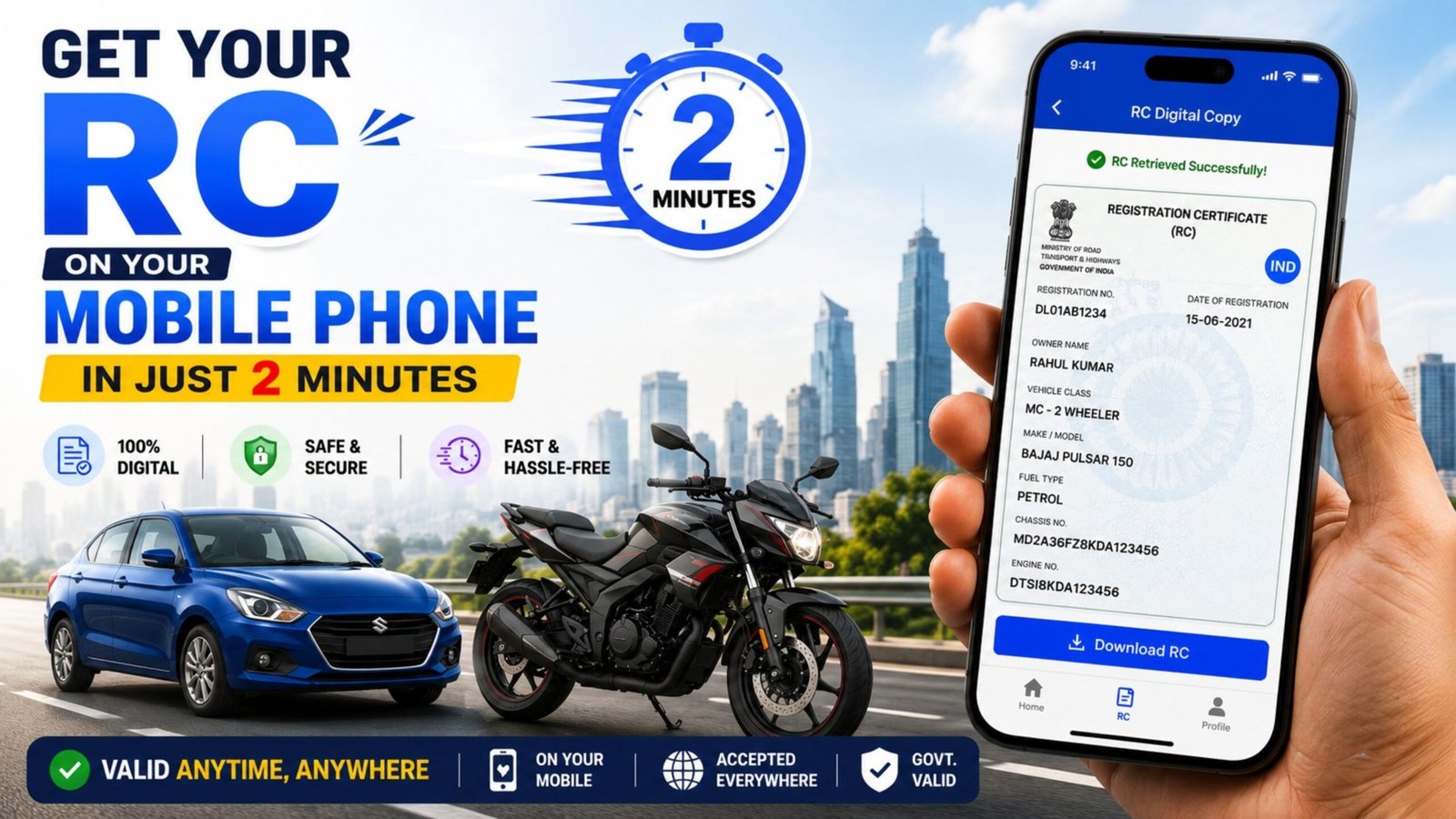
In India, the Registration Certificate (RC) of a vehicle is one of the most important documents for every vehicle owner. Earlier, people had to carry the original RC book or smart card while driving. But now, the Government of India allows citizens to download and store the digital RC card on their mobile phones through official apps and portals. This digital RC is legally valid and can be shown during traffic checks.
If you want to download your vehicle RC card on your smartphone, this detailed guide will help you understand the complete process step by step.
What is a Vehicle RC Card?
The RC (Registration Certificate) is an official document issued by the Regional Transport Office (RTO). It proves that your vehicle is registered with the government.
The RC contains important details such as:
| Category | Details |
|---|---|
| Vehicle Number | Registration number of the vehicle |
| Owner Name | Name of the registered owner |
| Engine Number | Vehicle engine identification number |
| Chassis Number | Unique chassis identification |
| Fuel Type | Petrol, Diesel, EV, CNG, etc. |
| Registration Date | Date of vehicle registration |
| Insurance Details | Insurance validity information |
Methods to Download RC Card on Mobile
There are mainly two official ways to download and access your RC card digitally:
- Through the DigiLocker app
- Through the mParivahan app
Both methods are safe, easy, and government-approved.
Method 1: Download RC Card Using DigiLocker App
Step 1: Install DigiLocker App
Open the Google Play Store or Apple App Store on your mobile phone and install the DigiLocker app.
Step 2: Sign Up or Login
- Open the app
- Enter your mobile number
- Verify using OTP
- Create a username and password
If you already have an account, simply log in.
Step 3: Search for Driving Services
After login:
- Tap on “Search Documents”
- Type “Registration of Vehicle”
- Select your state transport department or Ministry of Road Transport
Step 4: Enter Vehicle Details
You will now need to enter:
| Category | Details |
|---|---|
| Vehicle Number | Example: KA01AB1234 |
| Chassis Number | Last 5 digits usually required |
Make sure the details are entered correctly.
Step 5: Download RC Card
Once verified:
- Your RC card will appear on the screen
- Tap “Save to DigiLocker”
- The RC document will now be available anytime on your mobile
You can also download it as a PDF.
Method 2: Download RC Card Using mParivahan App Or Website
Step 1: Install mParivahan App
Download the official mParivahan App from the Play Store or App Store.
Step 2: Open the App Or Website
- Launch the app
- Choose your preferred language
- Sign in using your mobile number and OTP
Step 3: Add Vehicle Details
- Tap on “RC”
- Enter your vehicle registration number
- Example: KA05XY1234
Step 4: Search Vehicle
Tap on the search icon.
The app will automatically fetch vehicle details from the government database.
Step 5: Save Virtual RC
Now:
- Tap “Add to Dashboard”
- Your digital RC card will be stored inside the app
- You can access it anytime even during traffic inspections
Is Digital RC Valid?
Yes. The Government of India has officially approved digital documents stored in DigiLocker and mParivahan.
Traffic police and transport authorities accept these digital RC cards as valid proof.
Benefits of Digital RC Card
| Category | Details |
|---|---|
| Easy Access | Available anytime on mobile |
| Safe | No risk of losing original document |
| Government Approved | Legally valid across India |
| Paperless | No need to carry physical RC |
| Quick Verification | Easy during traffic checks |
Important Tips While Downloading RC
- Always use official government apps only
- Enter the correct vehicle number
- Keep your mobile number active for OTP verification
- Ensure internet connection is stable
- Do not share OTP with anyone
Important Links
| Link Description | Action Link |
| Join WhatsApp Group | Click Here to Join |
| Join Telegram Group | Click Here to Join |
| Apply Online Portal | Click Here to Apply |
| Official Website | Click Here |
RC download